

Managing Sales and features
Search and Sorting
-
Search: Utilize the search option to find sales data related to a specific customer. Simply type the name of the customer, and the system will display relevant sales data.
-
Sorting: Sort sales data based on various criteria such as invoice number, sale date, due date, total, and status. This feature enables you to organize sales data according to your preference for easier analysis.
Pagination
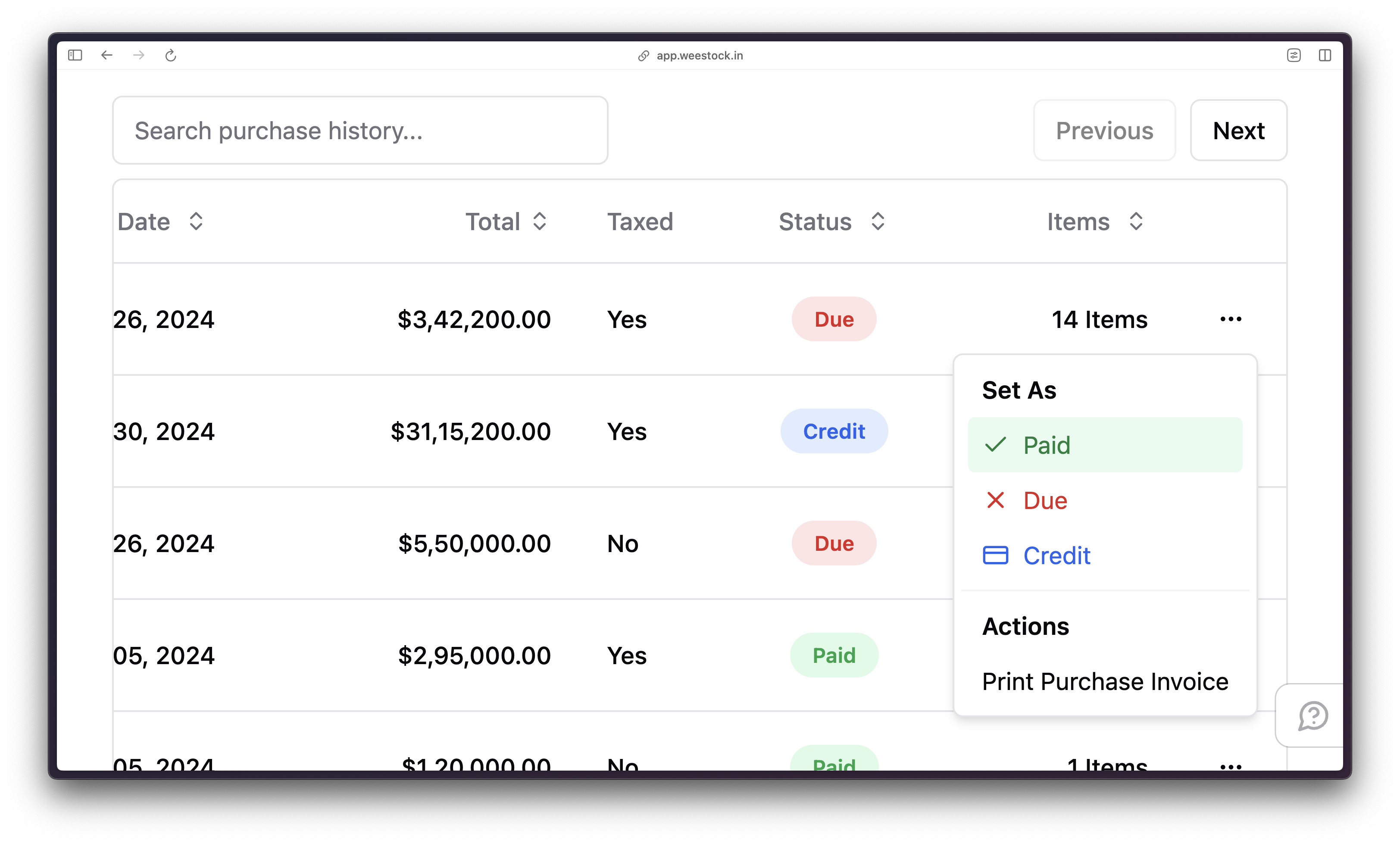
The sales table is paginated, displaying the top 10 sales by default. Use the next and previous buttons located at the top of the table to navigate through additional sales data.
Sales Management Options
Each row of the sales data table includes a menu represented by three dots. Clicking on these dots provides access to various management options:
-
Status Toggle: Toggle between different statuses (Paid, Due, Credit) for the sale. Easily update the payment status of the sale with this feature.
-
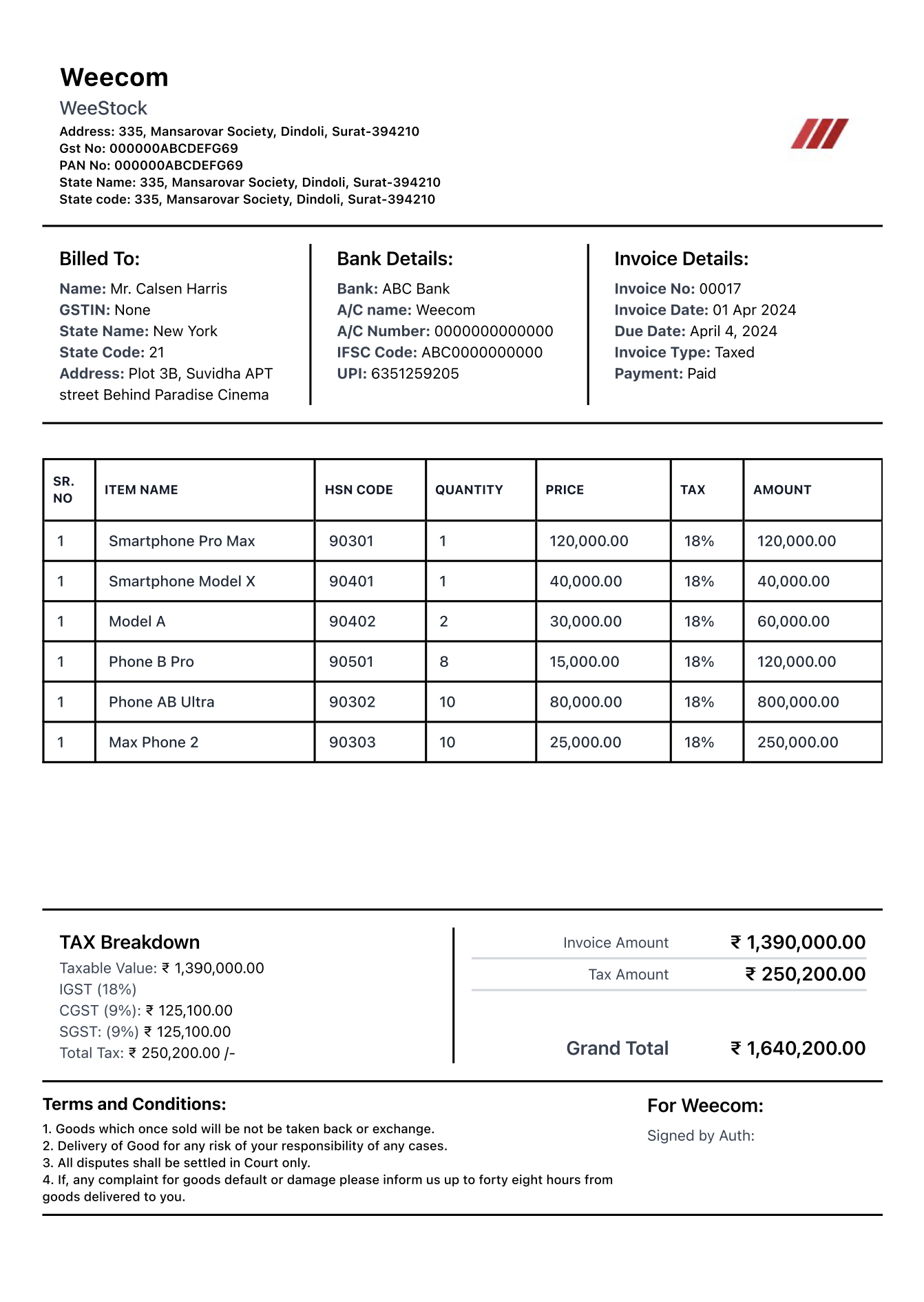
Print Invoice: Generate a smart invoice containing comprehensive details of the sale. The invoice includes:
- Seller Details: Company name, logo, and contact information.
- Buyer Details: Customer information associated with the sale.
- Tax Details: Breakdown of taxes applied to the sale.
- Order Status: Details of the sale status including dates and terms and conditions.
This print invoice feature is a key functionality of the application, providing users with professional and detailed invoices for their sales transactions.
Conclusion
Manage your sales efficiently with the search, sorting, pagination, and advanced features available in the sales management section. The ability to toggle status and generate smart invoices enhances your sales management capabilities, facilitating smooth and professional transaction processes.